The Magic of Pandas Profiling
Imagine having a tool that can unravel the mysteries hidden within your datasets, help you understand your data variables with great confidence even before you start working on your dataset. And all that with just 3 lines of code, therefore, making exploratory data analysis a breeze.

Pandas Profiling is that tool. It’s an open-source Python library that automates the tedious process of exploratory data analysis (EDA).
We’re about to dive into the powerful world of Pandas Profiling, a game-changer in the realm of data science. I believe that Pandas Profiling holds the key to unlocking valuable insights from your data, ultimately saving you time and effort.
Why Should You Use Pandas Profiling?
So, what’s in it for you as a data analyst or data scientist?
-
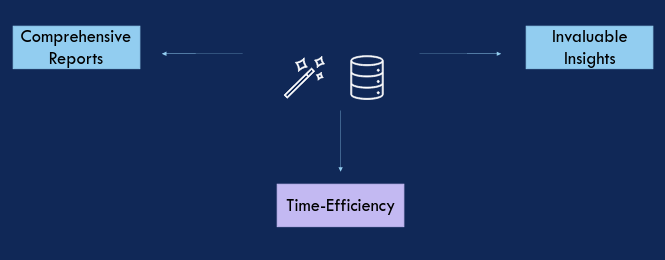
It generates comprehensive reports with summary statistics, data visualizations, and more, all with just a few lines of code.
-
It saves time by automating the EDA process.
-
It provides an overview of your data, detects missing values, identifies outliers, and much more.
-
It offers deeper insights into your data, which is essential for data science and computer science professionals to start working with any dataset.
A Live Demo: 3 Lines to Insights
Now, let’s see Pandas Profiling in action with a live demo:
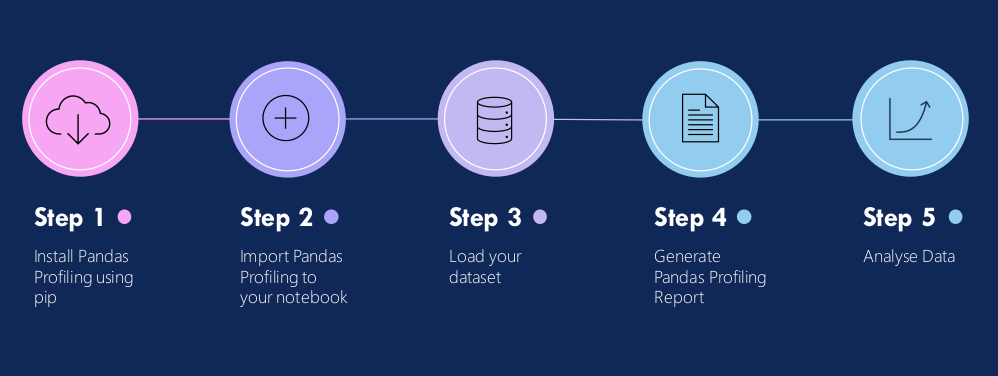
Step 1: Install pandas profiling using pip or conda
pip install ydata-profiling
conda install -c conda-forge ydata-profiling
Step 2: Import the Pandas Profiling library to your code.
# Import other requirements
import numpy as np
import pandas as pd
import matplotlib.pyplot as plt

# Import pandas profiling library
import ydata_profiling as pp
Step 3: Load a dataset (I’ll use the ‘Iris’ dataset for this demo).
# Import Iris Dataset
df_iris = pd.read_csv('./Iris.csv')

# To check if the dataset is imported successfully
df_iris.info()
(You can find the Iris.csv from here https://www.kaggle.com/datasets/uciml/iris?resource=download)
Step 4: Generate the Pandas Profiling report.
# Geneate  Report and save for later use
pp.ProfileReport(df_iris, title="Pandas Profiling Report").to_file("report.html")
Step 5: Analyze you report
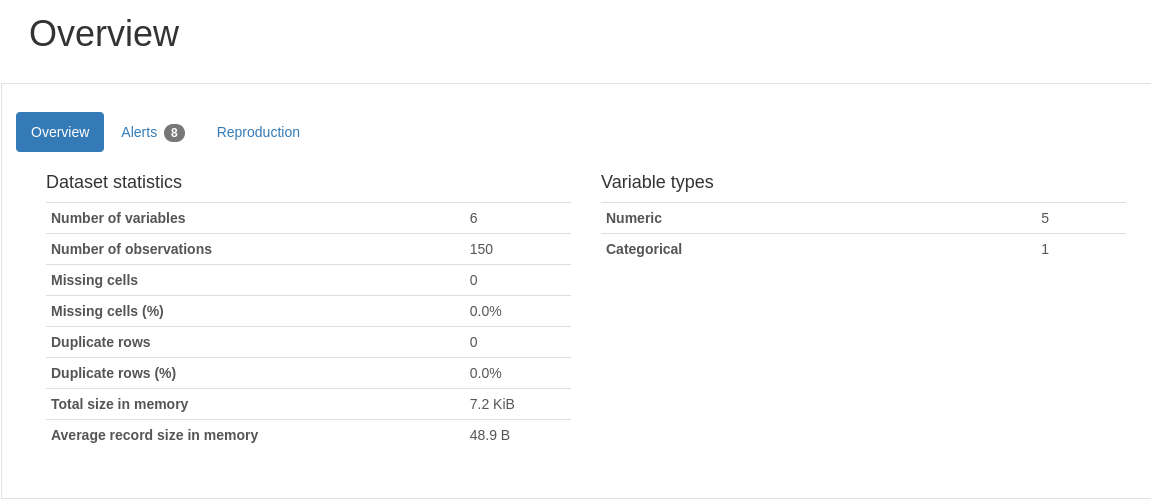 Overview of the data
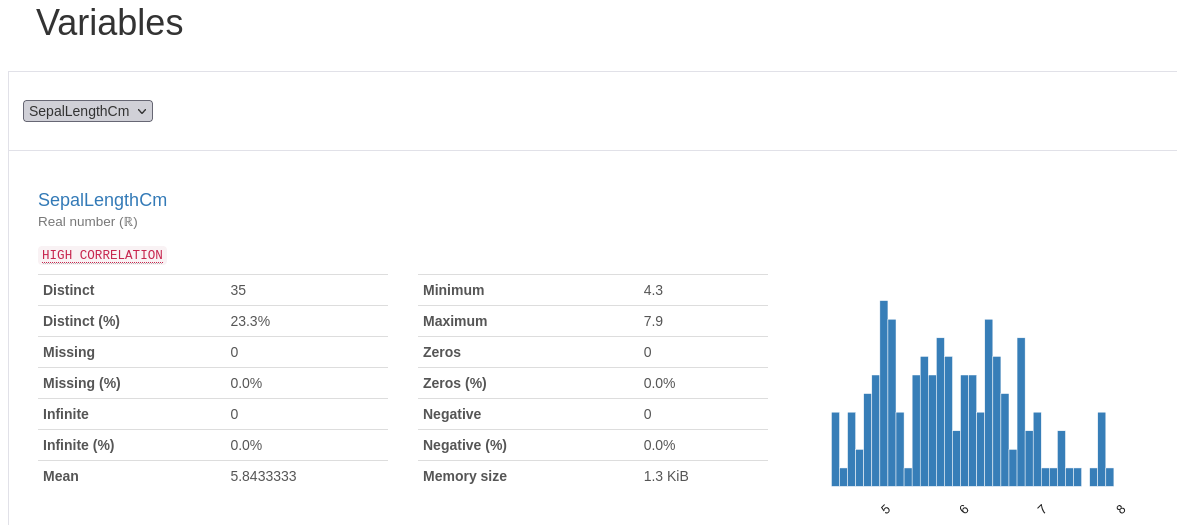 Statistics about all the variables/columns
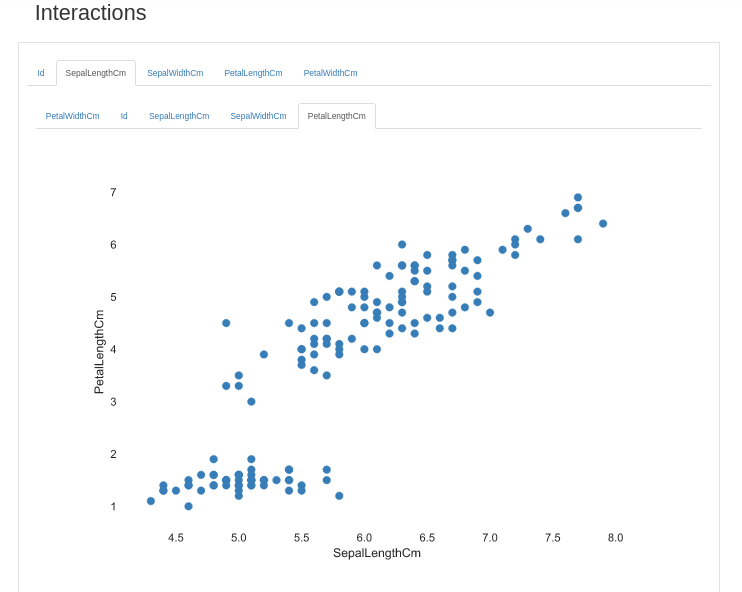 Interactions between all each of the variables
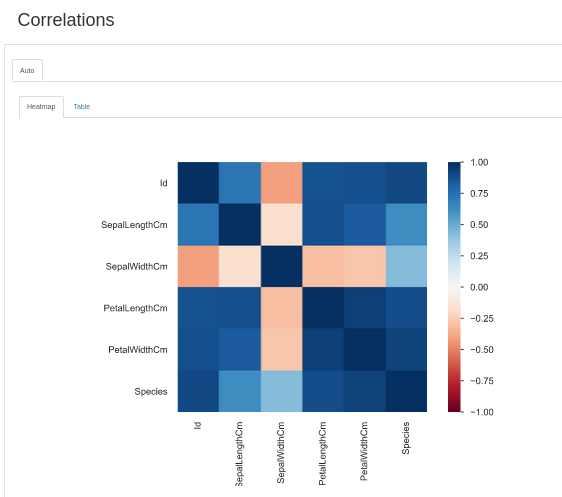 Correlation Matrix
Check the results hosted here. Pandas Profiling Report Profile report generated by YData! Visit us at https://ydata.aishloknangia.github.io
As you can see, Pandas Profiling simplifies complex data analysis tasks and empowers you to make data-driven decisions with confidence.
You can find all the code on my Github: https://github.com/shloknangia/pandas-profiling-demo
Summing it Up
In summary, Pandas Profiling is a one-stop solution for generating reports out of the pandas dataframe.
In just 3 lines of code, we generated a variety of EDA charts that provided valuable insights, and all of this in just a few minutes and it boosted our data confidence for this project/dataset.
We tried the library in “.py” file but it is also compatible with Jupyter Notebook and Google Colab.
And that’s it from my side; I hope you’ve learned something new. Pandas Profiling is a simple yet powerful tool that can enhance your data analysis journey. Give it a try and experience the magic yourself.
Till then , Keep Learning 😊